Thursday, May 14, 2020

How to install Windows 10 on Macbook Pro with out bootcamp

Hi all,
Today I am going to explain how to install Windows 10 (or 8 or 7) on any Macbook Pro or Macbook Air Or any Mac Computer,

I have searched a lot about installing Windows 10 on Macbook, and everywhere only "Bootcamp" method has been mentioned. But as we know boot camp method sometimes not work or partially work. 

Firstly I've to mentioned the main problems I've faced while installing Windows 10 on my MBP,for your information,

Macbook pro Model : 

- Macbook Pro (Mid 2014 retina display)
- Intel Core i5 2.6 gigs
- Ram - 8gb

I have got multiple errors on installing windows 10 on my Macbook pro mainly mentioned below,

- Black Screen After Windows 10 install and on first run
- Stuck at "Getting Ready" screen every time i boot or restart


So lets start installing Windows 10 on Macbook Pro. 

1. First we need to download Windows 10 ISO file, you can download it from Microsoft website, from the link below,


2. Now we have to download Macbook's drivers, (note that drivers are available through boot camp only. If you don't have drivers then graphics, sound,WiFi, keyboard and touch pad will not work). As Macbook has been designed to run Mac OS, so drivers for Windows OS is not available in the wild. So the only way to download drivers for macbook is via Bootcamp. 

You need at least 8 GB pen drive before proceed if you are using Macbook older than 2015 as newer macbooks can make bootable USB directly from the ISO file.

So start Bootcamp Assistant on your mac OS and  go through the process by selecting "Continue" and then selecting ISO file location. 

- ISO file will be selected by default if it is in downloads folder. 
- Insert pen drive in to any of the USB port
- Now select  partition size and go through the rest of the process of creating bootable USB on Bootcamp. 
- as the process finished get your pen drive out from the USB port. 
- All drivers will be downloaded in a folder called "Bootcamp" in pen drive. That's it we have got genuine Macbook Pro drivers for Windows 10 OS.


3. Now open "Disk Utility" and format that partition we have created in boot camp for windows 10. Make sure to select partition type as "Exfat" and name the partition what ever you want.

4.  Now find any windows computer and an another pen drive (8GB), because the USB drive we have prepared by Bootcamp has windows drivers on it. So if you dont have second 
pen drive and want to use only one, in that case copy "Bootcamp" folder to safe place on any other computer or hard drive, because we need to install it after windows 10 installation.

5. Download a tiny software called "Rufus", you can download it from the link below,

6. Open Rufus and select Windows 10 ISO file and select your USB pen drive. 

7. In partition scheme option "GPT" has been selected by default. If it is selected as "MBR" then select back to "GPT" as Macbook partitions are in GPT scheme. 

8. Now click on next and make bootable usb windows 10 on Rufus.

9. Restart your macbook and press "alt/Option" key when you hear the mac chime.

10. Select "Windows EFI" boot option 

11. This will lead you to windows 10 installation screen.

12. Select Language and region and press next,

13. When it asks for upgrade or custom install, Select Custom install

14. Now select the partition we have created using disk utility and click "Format" 

15. Go through the rest of the installation process. 

16. When windows start insert the pen drive which we have created with bootcamp 

17. Go to "Bootcamp" folder and install on clicking "Setup.exe" 

and you are done ! :)

Your Windows 10 installation has been completed successfully. 

Now please note the following remarks before restart or shut down your windows 10 OS.

- Make a system restore point (very important in case of any problem in loading windows 10 after restart). You can make system restore point by clicking on search icon >type "System Restore Point" > Click on "Create"> and give it a name and click next.

- Now restart your computer and see if it loads normally. 

- In case if it stuck at black screen after windows logo, please do following fixes (this works for my MBP model)

 - Don't use Avast Antivirus as it creates problem of black screen in some computers 
- Put your computers power option to "High Performance". It creates problem of black screen on my macbook.

- You can always restart in safe mode by pressing "Shift" Key while restart and disable any trouble making software if you have trouble loading windows os normally. 

That's it for now,

Enjoy your windows 10 on your macbook pro. 

Well, I know its a bit complex description on how to install windows OS on mac hardware. But spare me as I am in hurry with my current ongoing projects.

But you are always welcome to throw any queries or suggestions or experiences on this topic.


Hope this helps !!


Cheers!!!   


Wednesday, January 8, 2020

How to search faster on Windows 10..

Hi all, 😀
Microsoft Windows has a very good file searching tool inbuilt. It really works great on windows 7. But after that like on windows 8.1 or windows 10 its just pathetic 😖, specially after latest update on Windows 10 version 1909 (up to on this date while I am writing this article).

Well if you have to deal with lots of search during a day on Microsoft Windows 10  and tired with slow search or no search 😂   errors then there is a very good solution for it below,


There is a very tiny software called "Everything" available to download for free. 

You can download it from the link below,


The software is just 1.52 mb in size but make your searching experience very pleasant.( Trust me 😇).

It looks like the image below,


You can just start searching an item form the search box straight. User can also modify or select which file format he want to search by going to search menu and selecting file type shown in a image below,


You can also customize your search criteria by selecting specific folder from the Tools menu as under, First select Tools > Options


Select Folders option from left panel shown below,


Here you can add as many folder you want to make it search. You can also able to add a network folder or Mapped network drive here. (As I've added for example).


This will give you lots of search data. But you can also control search location by going to NTFS option in left panel as shown below,


Just select the drive you want to exclude from search and uncheck "Include in database" option. Click on apply and ok button and you are good to go 😃. 

And the search results will display as under,


It is blazing fast search experience on Everything app. 


Hope it will definitely help you people..😇

Cheers!!!!!😎

Tuesday, August 27, 2019

Outlook keep asking for password

Hi all, 😀
Today I am going to explain how to solve continuous asking of username & password error by outlook.

Well this error happens due to corrupted outlook profile. So the fix is to replace or create a new outlook profile for outlook.

Follow the simple steps below to do it,


1. First go to > Control Panel > Mail (32bit) or (64bit) in case,


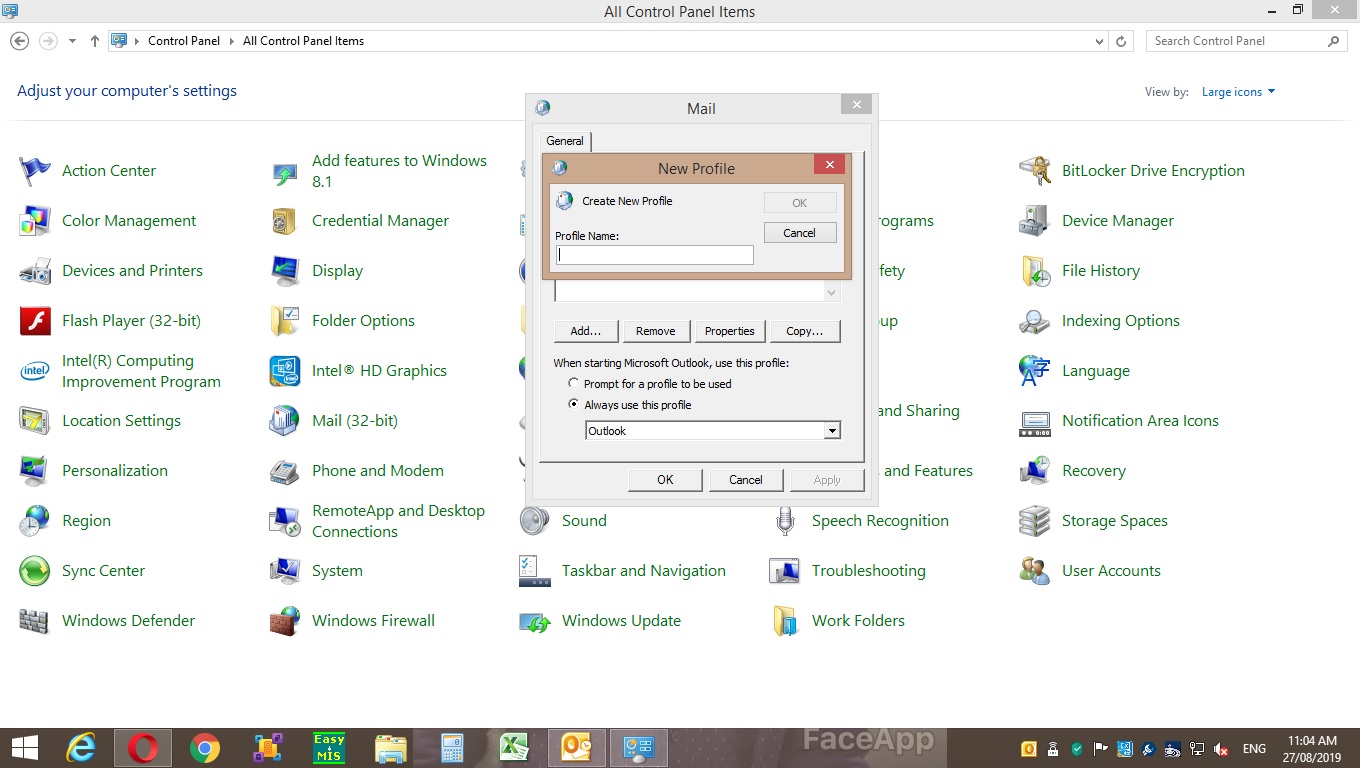
2. Then click on "Show Profiles"


3. Now click on "Add" to add a new profile,


4. Enter a name for your profile (You can use any name you want),


That's it ! Now try to add a new mail account in outlook. And it will not ask for username & password repeatedly.

Hope this helps...


Cheers!!! 

Outlook 2010 keeps folder synchronizing in Gmail IMAP

Hi all, 😃
Today I am going to explain about how to solve the IMAP folder synchronizing error in Gmail.

Microsoft has released office suit 2019 recently, but still lots of peoples keep using MS office 2010 (as it is lot faster in older hardware 😁).
So if you are one that using it then, you must have meet with the folder synchronizing error in imap settings of any mail (gmail,outlook etc).
to solve this, just follow the below simple steps,

(You can click on each image to view it larger)


  1. Double check that you have, enabled IMAP forwarding & allow non secure app access in gmail settings. (google it if you are not aware of this). 

      2. Now in Outlook 2010, go to  File > Options 


     3. Now click on  Advanced tab,


   4. In advance options scroll down to "Send/Receive" button,

   
 5. Select All accounts (or the account you want to edit) and click on edit button,


6. Uncheck "Get folder unread count for subscribed folders" 


7. Now tick on "use the custom behavior defined below" option and select folder which you have to download completely or just a header items only.


8. Click on "OK" button and restart outlook. 

That's it. enjoy uninterrupted gmail on outlook 2010. 😀


Hope this helps, 

Cheers!!!!


Saturday, January 19, 2019

Windows Search Not working on network folder or Mapped Network drive in windows 7,8,10 (Solved!!)

Hi all,
Today I am going to explain the most common issue of windows search not working on mapped network drive.

If you have to deal with lots of documents or folders located on other computer and you have created a mapped network drive then mostly this problem occurs that you will not find any file or folder in the search function.

Well to solve this problem you simply have to remove indexing from the computer that have data located.

 For those who don't know how to remove or edit indexing options, can follow the steps below,

1. Go to Control Panel and select view large icons under view by on top left corner


2. Now Select "Indexing Options" from the list,


3.  Now Click on "Modify"


4. Now remove tick mark from the every drive icons, also remove tick mark from the other folders also.


5. Now click on OK and restart your computer.

That's all now try to search from the network drive your search function will work.

The exact problem is with Window's indexing option. 
For example in my case, we have to scan all of our customer's files on a folder located on central computer and every employee of our company use it with mapped network drive. So if indexing options is on for that folder on central computer then what is happen that as new files added every minute, the computer tries to index each and every files added by the moment. During this indexing process (which is happening in the background of course!) other users will get no files found error. When all indexing process finishes then only other users can able to do find any files, but as indexing finished new files put in the folder and again indexing starts. :P

So the main idea is to stop the central computer from doing "Indexing exercise" :)

This will not affect very much, the search on central computer user. But it will be great help for the mapped network drive users.

I've searched a lot for this problem but finally this is the only solution I've managed to get rid of this problem.

Please share your solution if you find any.


Update : Well now you can solve the search problem by installing a tiny and free software called "Everything". 

You can download it from Here (www.voidtools.com)

More information on how to configure it properly can be found by visiting the link below,

How to configure "Everything" app

Don't forget to comment if you find this information useful.

Cheers!!!